
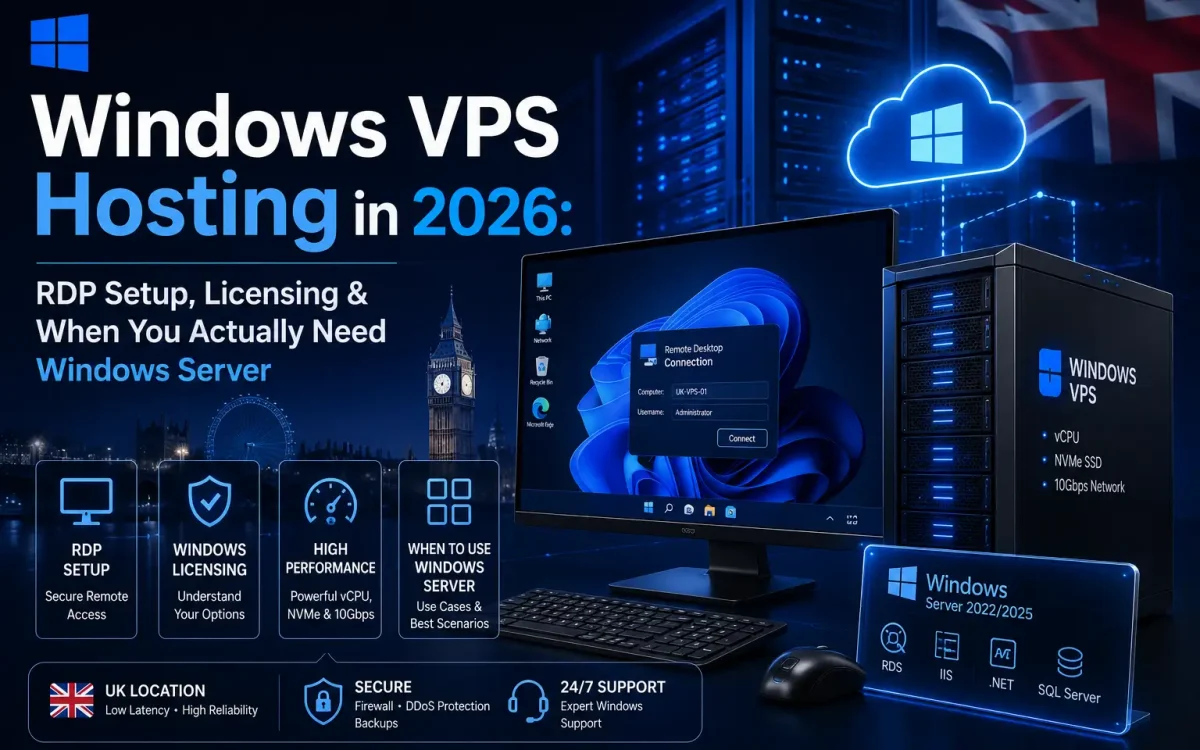
Windows VPS hosting sits in an awkward spot: some businesses genuinely need it, while others pay a premium for a Windows licence they never use. This guide explains what a Windows VPS actually is, how licensing and RDP work in 2026, how to keep your server secure, and — most importantly — how to tell whether you truly need Windows Server or whether a cheaper Linux VPS would serve you better.
What Is a Windows VPS?
A Windows VPS is a virtual private server running Microsoft Windows Server — typically Windows Server 2019, 2022 or the newer 2025 release — instead of a Linux distribution. You get a dedicated slice of a physical host: guaranteed vCPU, RAM, and NVMe storage, plus root-equivalent Administrator access to a full graphical Windows desktop. Unlike shared hosting, the resources are yours, and you can install almost any Windows software as if you were sitting at a physical machine.
The defining difference from a Linux VPS is how you interact with it. Windows Server is built around a graphical desktop, so you connect using the Remote Desktop Protocol (RDP) over TCP port 3389 and see the familiar Windows interface. That makes a Windows VPS approachable for people who have never touched a command line — exactly what many traders, .NET developers and businesses running Windows-only software want. If you are still weighing up server types, our hosting types decision guide is a good starting point before you commit to Windows.
Windows VPS vs Linux VPS

The honest headline is this: most websites and most workloads do not need Windows. Linux is free, lighter, and dominates general web hosting — LAMP/LEMP stacks, WordPress, Docker containers, and virtually every open-source application run best there. You only reach for Windows when a piece of software demands it. The table below summarises where each platform wins.
| Factor | Windows VPS | Linux VPS |
|---|---|---|
| OS licence cost | Paid (bundled into plan) | Free (no licence) |
| Baseline overhead | Higher (GUI + OS services) | Lower (more resources for apps) |
| Primary access | RDP graphical desktop | SSH command line |
| Best for | .NET/IIS, MS SQL, MetaTrader, Windows-only apps | Web hosting, LAMP/LEMP, Docker, open-source stacks |
| Typical price | Higher for the same specs | Lower for the same specs |
| Ease for GUI users | Familiar Windows desktop | Steeper learning curve |
Because Linux carries no operating-system licence and less overhead, an equivalent Linux VPS is cheaper and leaves more RAM and CPU available to your actual applications. If your goal is a website, an API, or a container-based deployment, Linux is almost always the smarter, cheaper choice — and you can lock it down properly by following our guide on hardening SSH on a Linux VPS. Choose Windows only when a specific application forces your hand.
How Windows Server Licensing Works
Windows Server is not free, and this is the single biggest reason a Windows VPS costs more than a comparable Linux one. Reputable hosts do not, however, expect you to buy a licence yourself. Instead they license Windows through Microsoft’s Services Provider License Agreement (SPLA), paying Microsoft monthly for the Windows instances their customers run. That cost is bundled into your plan price, so you simply order a Windows VPS and the licensing is handled behind the scenes.
This is different from the core-based licensing model that applies when you buy Windows Server outright for a physical or dedicated machine, where you license per physical core with a minimum count. For the authoritative detail, see Microsoft’s Windows Server licensing overview. The practical takeaways for a VPS buyer are simple:
- You almost never purchase a Windows licence directly — it is included in the monthly plan price via SPLA.
- The Windows premium is real: expect to pay more than an identical Linux VPS purely for the OS.
- If you need many simultaneous interactive users on one server, Remote Desktop CALs (Client Access Licences) may come into play beyond the default two administrative sessions.
- Always confirm with your host that the Windows licence and any RDS licensing you need are covered.
When You Actually Need Windows Server
Rather than defaulting to Windows because it feels familiar, ask whether any of your software genuinely requires it. You truly need Windows Server when you are running:
- Windows-only trading platforms — MetaTrader 4 or 5 running 24/7 with Expert Advisors (EAs), and similar algorithmic trading tools that only ship as Windows executables.
- .NET Framework / ASP.NET applications on IIS — classic ASP.NET web apps and legacy .NET Framework code that depend on Internet Information Services.
- Microsoft SQL Server — while SQL Server can run on Linux today, many businesses standardise on the Windows edition alongside their existing tooling.
- Windows-only line-of-business software — QuickBooks Desktop, Sage, Microsoft Access databases and bespoke industry apps that have no Linux version.
- A remote Windows work desktop — a cloud-based Windows environment you and your team can reach from anywhere, on any device.
If none of the above applies — if you are hosting a website, a WordPress blog, a Node or PHP application, or a Docker stack — you do not need Windows, and paying the licence premium is money wasted. Be honest with yourself here; the cheapest correct answer is usually Linux.
How to Connect to Your VPS via RDP

Once your Windows VPS is provisioned, your host gives you an IP address, the Administrator username and a password. Connecting is quick regardless of the device you are on:
- Windows: use the built-in Remote Desktop Connection client (
mstsc.exe). Open it, enter the VPS IP, then sign in asAdministrator. - macOS: install the free Microsoft Remote Desktop app from the App Store and add the VPS as a new PC.
- Linux: use Remmina or a FreeRDP client to reach the same RDP endpoint.
On Windows you can launch a connection straight from Run or a terminal by passing the server address to the client:
REM Open Remote Desktop pointed at your VPS
mstsc /v:203.0.113.10

REM Or launch mstsc, type the IP, then enter:
REM   Username: Administrator
REM   Password: (your VPS password)
The first time you connect you may see a certificate warning — that is normal for a fresh server. After signing in you will land on the full Windows Server desktop, ready to install software, configure IIS, or set up MetaTrader exactly as you would on a local PC.
How to Secure RDP Against Attacks

Port 3389 is one of the most relentlessly brute-forced ports on the internet. Leaving RDP wide open with a weak Administrator password is the fastest way to have your VPS compromised, so hardening it is not optional. Work through these steps as soon as the server is live:
- Enforce a long, unique Administrator password and enable an account lockout policy after a few failed attempts.
- Keep Network Level Authentication (NLA) enabled so credentials are checked before a session is created.
- Restrict RDP to your own IP address with a firewall rule, or place it behind a VPN or RD Gateway.
- Change or firewall the default 3389 port to cut down automated scanning noise.
- Rename or disable the default
Administratoraccount and create a separate named admin user. - Keep Windows fully patched, and add multi-factor authentication (MFA) for RDP where possible.
The single most effective control is limiting who can even reach the port. The PowerShell below restricts RDP to a single trusted source IP; the netsh example shows how you would change the listening port in the registry if you prefer that approach:
# Allow RDP only from your office/home IP address
New-NetFirewallRule -DisplayName "RDP-Restricted" `
  -Direction Inbound -Protocol TCP -LocalPort 3389 `
  -RemoteAddress 198.51.100.25 -Action Allow

# Block RDP from everywhere else
New-NetFirewallRule -DisplayName "RDP-BlockAll" `
  -Direction Inbound -Protocol TCP -LocalPort 3389 `
  -Action Block

# (Optional) change the RDP listening port in the registry
Set-ItemProperty -Path 'HKLM:SYSTEMCurrentControlSetControlTerminal ServerWinStationsRDP-Tcp' `
  -Name PortNumber -Value 3390
If you would rather someone else took responsibility for patching and lockdown, weigh up the trade-offs in our comparison of managed versus unmanaged VPS hosting before you decide how hands-on you want to be.
Choose the Right Windows VPS Specs
Windows Server needs more baseline RAM than Linux because the graphical desktop and background services consume resources before your application even starts. That single fact should shape how you size a Windows VPS: give it more RAM headroom than a Linux box doing the same job. As a rule of thumb, treat 4GB as a comfortable minimum for real workloads, insist on NVMe storage, and match vCPU to how demanding your application is.
| Workload | RAM | vCPU | Notes |
|---|---|---|---|
| 1–3 MetaTrader instances | 2–4GB | 2 | Each MT4/MT5 is light; many instances add up |
| Small ASP.NET / IIS site | 4GB | 2 | More RAM if using a local database |
| MS SQL Server database | 8GB+ | 4 | SQL loves RAM; scale with data size |
| Remote work desktop | 4–8GB | 2–4 | Depends on the apps your team runs |
Where the server physically lives matters too, especially for latency-sensitive work such as trading or serving UK visitors. Hosting close to your users and brokers keeps round-trip times low, which is one reason our UK datacentre and London location guide is worth a read. UK Speed’s UK Windows VPS plans are built on NVMe with a London footprint precisely for this reason.
Use Cases for a Windows VPS
Forex and algorithmic trading
This is the most popular reason UK traders buy a Windows VPS. Running MetaTrader 4 or 5 with Expert Advisors around the clock needs a machine that never sleeps and sits close to the broker, which a home PC cannot guarantee. We cover this in depth in our complete Windows Forex VPS guide, and if you want specific recommendations, see the best Windows Forex VPS for MT4 and MT5 trading.
.NET web apps and databases
ASP.NET applications on IIS and Microsoft SQL Server databases are natural fits for Windows. If your development stack was built around the Microsoft ecosystem, a Windows VPS lets you deploy and manage everything with the tools your team already knows.
Remote desktops and Windows-only software
A Windows VPS also makes an excellent always-on remote desktop: run accounting packages like QuickBooks or Sage, host bespoke Windows line-of-business apps, or keep automation bots and scrapers running 24/7 without tying up your own computer. Anything that only exists as a Windows program can live here and be reached from any device over RDP.
Conclusion
Windows VPS hosting is the right call when a specific application — MetaTrader, ASP.NET on IIS, MS SQL Server, or Windows-only line-of-business software — genuinely requires Windows Server. In every other case, Linux is cheaper, lighter and perfectly capable, so let your software, not habit, make the decision.
Whichever you choose, size for headroom, secure RDP or SSH before you go live, and host close to your users.
- List the software you must run and check whether any of it is Windows-only.
- If it is, pick a Windows VPS with at least 4GB RAM and NVMe storage; if not, save money with Linux.
- Lock down RDP immediately: restrict the source IP, enforce a strong password, and enable NLA.
- Choose a UK-based host if low latency for British users or brokers matters.
Get a high-performance UK Speed VPS
Full root and admin access on fast AMD EPYC and NVMe hardware, hosted in the UK and ready for your workloads.