
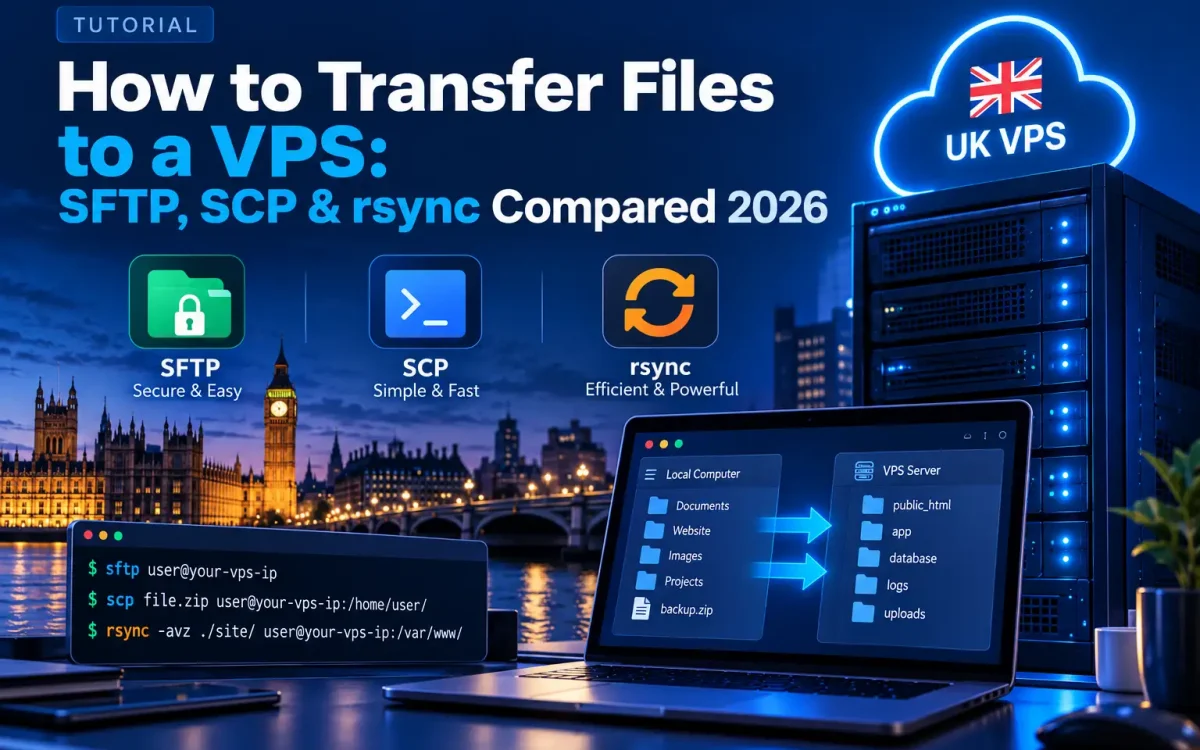
- Transfer Files to a VPS: Why the Right Method Matters
- Prerequisites: SSH Access and Keys
- SFTP: Secure, Interactive File Transfer
- SCP: Fast One-Off Command-Line Copies
- rsync: Efficient Syncing for Large and Repeated Transfers
- SFTP vs SCP vs rsync: Which Should You Use?
- Common Mistakes and Security Tips
- Automating and Scheduling Transfers
- Conclusion
Learning how to transfer files to a VPS is one of the first skills every server owner needs, whether you are deploying a website, restoring a backup, or pushing code to production. Unlike shared hosting with a drag-and-drop panel, a virtual private server gives you full control over a Linux environment, and that control starts with knowing how to move files safely and efficiently. This guide compares the three most common tools for the job in 2026 — SFTP, SCP, and rsync — and all three run securely over SSH, so your credentials and data are encrypted in transit. By the end you will know exactly which method fits each situation, how to run the commands, and how to avoid the mistakes that slow people down.
Transfer Files to a VPS: Why the Right Method Matters
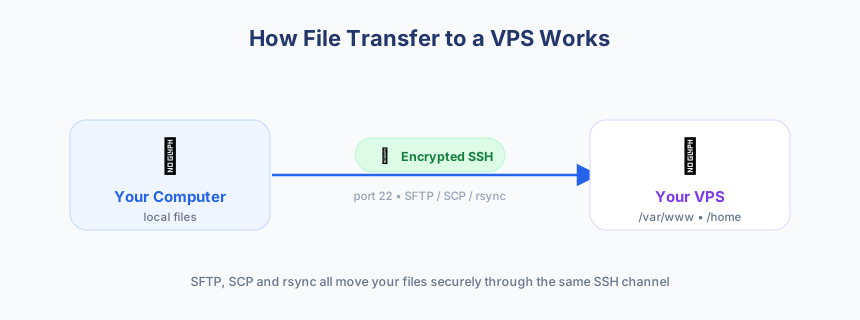
When you transfer files to a VPS, the tool you pick affects speed, reliability, and how much you can automate later. A one-time upload of a single configuration file has very different needs from syncing a large website directory every day. Choosing poorly means wasted bandwidth, broken permissions, or transfers that have to start over from zero when a connection drops. The good news is that SFTP, SCP, and rsync all build on the same secure SSH foundation, so you are never trading security for convenience. Instead, you are choosing between an interactive browser-style workflow, a quick command-line copy, and an intelligent synchronisation engine. Understanding the strengths of each lets you move files with confidence and keep your server deployments clean and repeatable, whether you are running a simple blog or a full LEMP stack on your VPS.
Prerequisites: SSH Access and Keys
Because every method here rides on top of SSH, you need working SSH access to your server before you can move files at all. SSH listens on port 22 by default, and your VPS provider gives you a username (often root or a sudo-enabled user) and either a password or, better, an SSH key pair. Key-based authentication is strongly recommended: it is more secure than passwords and lets you automate transfers without typing a secret each time. Make sure you have the following in place before continuing.
- An SSH client installed — built into Linux and macOS terminals, and available on Windows through PowerShell, WSL, or tools like WinSCP and FileZilla.
- Your server’s IP address or hostname, plus the SSH username.
- An SSH key pair (
ssh-keygen) with the public key added to the server, or your login password as a fallback. - Confirmation that you can log in with
ssh user@your-vpsbefore attempting any file transfer. - Knowledge of the destination path on the server, such as
/var/www/for web files.
Once SSH works, it is worth taking a few minutes to tighten it. A quick read through our guide on how to harden SSH on a Linux VPS will help you disable password logins, limit users, and reduce the attack surface before you start sending real data.
SFTP: Secure, Interactive File Transfer
SFTP, the SSH File Transfer Protocol, is the most beginner-friendly way to move files because it gives you an interactive session that behaves like a mini file manager. You connect with sftp user@your-vps, land in a prompt, and then browse, upload, and download at will. Use put to upload a file from your computer to the server and get to download one back. You can list remote files with ls and local files with lls, which makes it easy to confirm you are in the right place before transferring. Because SFTP is defined on top of SSH, everything is encrypted automatically — there is no separate secure mode to enable. You can read more about the protocol itself on the SSH File Transfer Protocol reference page.
SFTP really shines for people who prefer a graphical interface. Windows users commonly reach for WinSCP, while FileZilla works across every platform and lets you drag files between two panes. These clients remember your connection details, show permissions visually, and resume interrupted uploads, which makes them ideal when you want to upload files to your server occasionally without memorising commands. The trade-off is that SFTP is not the fastest option for huge directories, and it does not detect which files have already been transferred.
SCP: Fast One-Off Command-Line Copies
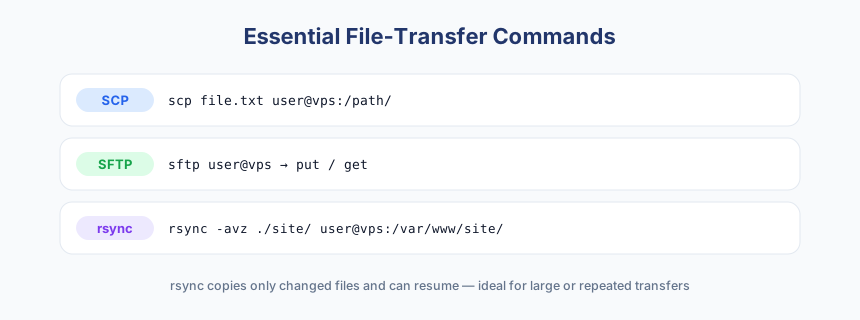
SCP (secure copy) is the quickest way to push or pull a single file or folder in one line, with no interactive session to manage. To upload, you run scp file.txt user@your-vps:/path/, and the file lands on the server encrypted over SSH. To copy an entire directory, add the recursive flag with scp -r. Downloading simply reverses the arguments: put the remote path first and the local destination second. This makes SCP perfect for scripts and quick fixes — for example, dropping a fresh config file onto the server or grabbing a log for inspection.
The limitation of SCP is that it is “dumb” by design: it copies everything you point it at, every time, with no awareness of what already exists on the destination. If a transfer is interrupted halfway, SCP cannot resume — you start again from the beginning. For a handful of small files this does not matter, but for gigabytes of data or repeated deployments it becomes wasteful, which is exactly where rsync takes over.
rsync: Efficient Syncing for Large and Repeated Transfers
rsync is the professional’s choice when you need to move large amounts of data or repeat the same transfer regularly. Its key advantage is the delta-transfer algorithm: instead of copying everything, rsync compares source and destination using file sizes, timestamps, and optional checksums, then sends only the parts that have actually changed. A typical command looks like rsync -avz ./site/ user@your-vps:/var/www/site/, where -a preserves permissions and timestamps, -v is verbose, and -z compresses data in transit. Add --progress to watch each file as it transfers, and you get a clear view of a long job.
Crucially, rsync can resume an interrupted transfer rather than restarting it, and running the same command twice only moves what is new — the second run of an unchanged directory finishes almost instantly. This makes it the backbone of deployments, backups, and server migrations. If you are moving an entire site to new infrastructure, our walkthrough on how to migrate your website to a new host with zero downtime leans heavily on rsync for exactly these reasons. Here is a clean sequence for syncing a folder to your VPS.
- Confirm SSH access works with
ssh user@your-vpsand note the exact destination path. - Do a dry run first with
rsync -avz --dry-run ./site/ user@your-vps:/var/www/site/to preview what will change. - Run the real sync with
rsync -avz --progress ./site/ user@your-vps:/var/www/site/. - Watch the output, then re-run the same command to confirm it reports no further changes.
- Check file ownership and permissions on the server so your web application can read the new files.
SFTP vs SCP vs rsync: Which Should You Use?
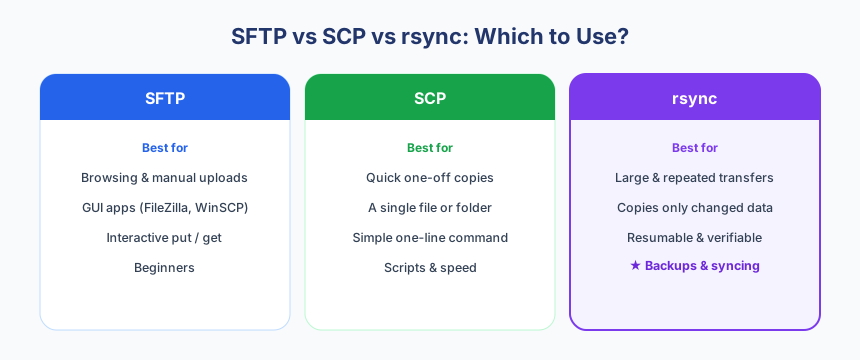
All three tools are secure and share the same SSH transport, so the decision comes down to workflow. Use SFTP when you want an interactive, visual experience; use SCP for fast one-off copies inside scripts; and use rsync whenever size, repetition, or reliability matter. The table below summarises the differences at a glance.
| Feature | SFTP | SCP | rsync |
|---|---|---|---|
| Interface | Interactive session or GUI | Single command | Single command |
| Best for | Browsing & occasional uploads | Quick one-off copies | Large & repeated transfers |
| Copies only changes | No | No | Yes |
| Can resume transfer | Partial (via client) | No | Yes |
| Secure over SSH | Yes | Yes | Yes |
| Beginner friendly | Very | Moderate | Moderate |
Common Mistakes and Security Tips
Most file-transfer problems come down to a few avoidable errors. Keeping the following points in mind will save you time and protect your server as you move files back and forth.
- Mind the trailing slash in rsync:
./site/copies the contents of the folder, while./sitecopies the folder itself — a classic cause of nested directories. - Always run a
--dry-runwith rsync before a large or destructive sync, especially when using--delete. - Do not transfer files as
rootwhen a limited user will do; wrong ownership can break your web server or leave files world-writable. - Prefer SSH keys over passwords, and never paste private keys into transfer clients you do not trust.
- Double-check the destination path so you do not overwrite a live directory by accident.
- If a connection keeps dropping, switch from SCP to rsync so an interrupted transfer can resume instead of restarting.
Automating and Scheduling Transfers
Once you can move files reliably by hand, the next step is to automate. Because rsync and SCP are command-line tools, they drop straight into shell scripts and cron jobs. With key-based SSH in place, a scheduled rsync command can push a nightly snapshot of your application directory to the server, or pull a copy of server data down to your local machine — all without any manual input. This is the foundation of a dependable backup routine, and it is far more trustworthy than remembering to drag files into a window each week.
For serious, automated backups you will often combine rsync with purpose-built tooling. Our guide to an automated off-site backup with BorgBackup and rclone shows how to turn these one-line commands into a resilient, scheduled system with versioning and off-site storage. The same principles — SSH keys, cron, and incremental transfers — apply whether you are protecting a single site or an entire fleet of servers.
Conclusion
There is no single best way to transfer files to a VPS — there is only the right tool for the task in front of you. SFTP gives you a friendly, interactive workflow, SCP handles quick one-off copies, and rsync is the efficient choice for anything large, repeated, or mission-critical. Because all three are encrypted over SSH, you can mix and match them freely without ever compromising security. Start simple, then graduate to rsync and automation as your needs grow. If you are still choosing a server, compare the options on our official plans page before you begin.
What to do next:
- Confirm SSH access to your server and set up a key pair if you have not already.
- Practise a small upload with SFTP or
scp file.txt user@your-vps:/path/to get comfortable. - Run an rsync dry run on a real folder, then perform the live sync with
--progress. - Harden your SSH configuration before putting the server into production use.
- Schedule a recurring rsync or backup job so your transfers happen automatically.
Ready to move your files onto a fast UK VPS?
UK Speed VPS plans run on AMD EPYC processors and NVMe storage in a UK data center, with full root access, dedicated resources, 24/7 support, and flexible payment — fast, reliable SSH access for all your SFTP, SCP and rsync transfers.