Introduction
SSH keys have become the standard authentication method for Linux servers because they provide significantly stronger security than traditional passwords. Most modern VPS providers encourage—or even require—SSH key authentication to protect servers against brute-force attacks, credential theft, and unauthorized access.
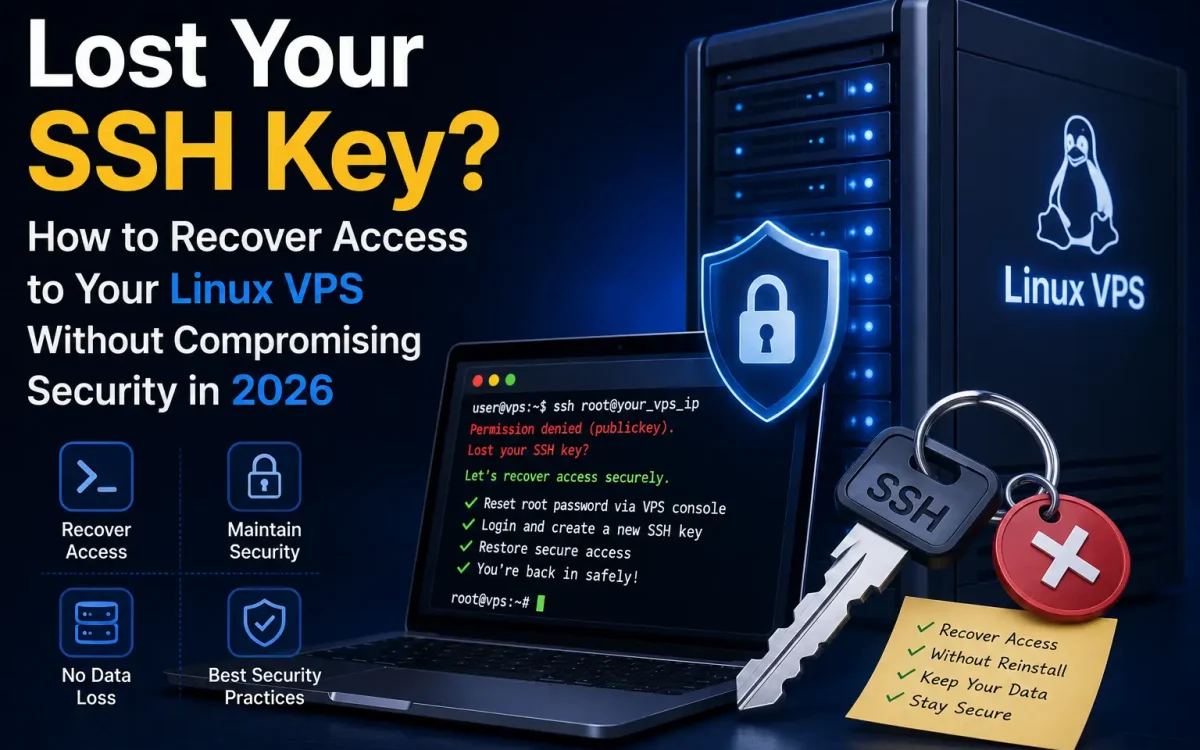
However, this security comes with one potential challenge: what happens if you lose your private SSH key?
Many Linux administrators, developers, DevOps engineers, and business owners eventually face this situation. Whether the key was accidentally deleted, a laptop failed, a password manager became unavailable, or the private key was lost during a system migration, losing SSH access can leave you completely locked out of your VPS.
Fortunately, losing your SSH key does not necessarily mean losing your server. This guide explains how to safely recover access to your Linux VPS while maintaining strong security and avoiding common mistakes.
Why SSH Keys Are More Secure Than Passwords
SSH keys use public-key cryptography instead of reusable passwords.
Authentication relies on:
- Private key
- Public key
The private key remains on your local device.
The public key is stored on the server.
During authentication, the server verifies ownership of the private key without transmitting it across the network.
Advantages include:
- Stronger authentication
- Resistance to brute-force attacks
- Protection against password guessing
- Better automation support
SSH keys remain the recommended authentication method in 2026.
Common Reasons SSH Keys Are Lost
Administrators commonly lose keys because of:
- Laptop replacement
- Hard drive failure
- Accidental deletion
- Reinstalling operating systems
- Corrupted user profiles
- Lost encrypted backups
- Forgotten password manager credentials
Many incidents are preventable through proper backup strategies.
Before Attempting Recovery
Do not immediately:
- Reinstall the server
- Reset configurations
- Disable security
First determine:
- Do you still have console access?
- Is another administrator available?
- Is another SSH key already authorized?
- Does your hosting provider offer recovery tools?
The safest recovery method depends on your available access.
Method 1: Use Your VPS Provider’s Console
Most VPS providers offer an out-of-band console through their control panel.
Examples include:
- VNC Console
- HTML5 Console
- Serial Console
- KVM Console
Unlike SSH, these consoles connect directly to the virtual machine.
If console access is available:
- Log in using console access.
- Authenticate with your Linux account.
- Restore SSH access.
This is usually the safest recovery method.
Method 2: Add a New SSH Key
Once console access is available:
Navigate to:
mkdir -p ~/.ssh
nano ~/.ssh/authorized_keys
Paste your new public SSH key.
Save the file.
Correct permissions:
chmod 700 ~/.ssh
chmod 600 ~/.ssh/authorized_keys
Restart SSH if required:
sudo systemctl restart ssh
You should now be able to authenticate using the new key.
Method 3: Boot into Rescue Mode
Many VPS providers support rescue environments.
These temporary systems allow administrators to mount server disks.
Typical process:
- Enable Rescue Mode.
- Boot into rescue Linux.
- Mount the original filesystem.
- Edit:
/root/.ssh/authorized_keys
or
/home/username/.ssh/authorized_keys
Insert the new public key.
Unmount the filesystem.
Reboot normally.
Method 4: Mount the Disk on Another VPS
Cloud providers often allow:
- Disk detachment
- Disk attachment
Mount the affected disk:
sudo mount /dev/vdb1 /mnt/recovery
Navigate to:
/mnt/recovery/home/user/.ssh/
Edit:
authorized_keys
Save the file.
Detach the disk.
Boot the original VPS.
This method avoids reinstalling the operating system.
Method 5: Enable Temporary Password Authentication
If console access is available:
Edit:
/etc/ssh/sshd_config
Temporarily change:
PasswordAuthentication yes
Restart SSH:
sudo systemctl restart ssh
Login using a strong password.
Immediately:
- Restore SSH keys.
- Disable password authentication again.
Leaving password authentication enabled permanently increases security risks.
Method 6: Recover from Cloud Snapshots
If snapshots exist:
Restore:
- Entire VPS
- System disk
- Previous configuration
Snapshots often contain the original SSH configuration.
Always verify that restored snapshots do not overwrite important recent data.
Method 7: Recover from Infrastructure Automation
Organizations using:
- Ansible
- Terraform
- Cloud-init
may regenerate SSH keys automatically.
Review deployment repositories.
Infrastructure-as-Code simplifies disaster recovery.
Method 8: Contact Your Hosting Provider
Some hosting providers can assist by:
- Mounting disks
- Providing console access
- Enabling rescue mode
- Verifying server ownership
Most reputable providers cannot simply provide your lost private key because they never store it.
Instead, they assist with secure recovery methods.
What You Should Never Do
Avoid:
- Disabling SSH security permanently
- Leaving password authentication enabled
- Using weak passwords
- Sharing private keys
- Copying private keys between multiple users
Security should remain the priority during recovery.
Generating a New SSH Key
Create a modern Ed25519 key:
ssh-keygen -t ed25519 -C "[email protected]"
The generated files:
Private key:
~/.ssh/id_ed25519
Public key:
~/.ssh/id_ed25519.pub
Store the private key securely.
Test the New Key
Verify:
ssh -i ~/.ssh/id_ed25519 user@server-ip
Successful authentication confirms proper installation.
Secure Your SSH Configuration
Recommended settings:
PermitRootLogin no
PasswordAuthentication no
PubkeyAuthentication yes
MaxAuthTries 3
Restart SSH:
sudo systemctl restart ssh
These settings improve security significantly.
Enable Multi-Factor Authentication
For sensitive systems, combine SSH keys with:
- TOTP
- Hardware security keys
- PAM modules
Layered authentication reduces unauthorized access.
Backup Your SSH Keys
Recommended backup methods:
- Encrypted password managers
- Offline encrypted USB drives
- Secure cloud storage
- Hardware security modules
Never leave your only private key on a single device.
Separate Administrator Keys
Each administrator should have:
- Individual SSH keys
- Individual accounts
Avoid shared credentials.
This improves:
- Auditing
- Accountability
- Security
Rotate SSH Keys Regularly
Organizations should periodically:
- Remove unused keys
- Replace compromised keys
- Review authorized users
Regular audits improve security posture.
Why VPS Console Access Is Essential
Modern VPS providers should offer:
- Browser console access
- Rescue environments
- Snapshot recovery
- Emergency reboot tools
These features greatly simplify disaster recovery.
Why UKSpeed VPS Infrastructure Supports Secure Recovery
Reliable infrastructure is critical during emergencies.
UKSpeed VPS environments provide:
- Browser-based console access
- High-performance NVMe storage
- Dedicated VPS resources
- Reliable UK infrastructure
- Snapshot capabilities
- High availability
These features allow administrators to recover access quickly while maintaining strong security practices.
Common SSH Recovery Mistakes
Administrators frequently:
- Forget file permissions
- Add incorrect public keys
- Edit the wrong user’s authorized_keys
- Leave password authentication enabled
- Skip SSH service restarts
Carefully reviewing each step prevents repeated lockouts.
Best Practices for Long-Term SSH Security
Implement:
- Ed25519 keys
- Passwordless authentication
- Multi-factor authentication
- Console recovery plans
- Regular key rotation
- Secure backups
- Access monitoring
Preparation significantly reduces operational risk.
Future Trends in SSH Security
In 2026, Linux infrastructure increasingly adopts:
- Hardware-backed authentication
- FIDO2 security keys
- Automated key rotation
- Zero Trust architectures
- Passwordless administration
These technologies continue strengthening server security.
Conclusion
Losing your SSH key can be stressful, but it does not have to result in permanent server lockout or risky security compromises. Modern VPS platforms provide multiple recovery options, including browser consoles, rescue environments, snapshots, and disk mounting techniques that allow administrators to regain access safely.
By following structured recovery procedures, generating modern SSH keys, maintaining secure backups, and implementing strong authentication policies, Linux administrators can recover quickly while preserving the security of their infrastructure. Investing in reliable VPS hosting with console access, snapshots, and robust recovery tools ensures that even unexpected authentication issues can be resolved with minimal downtime in 2026.
Further Reading
For an authoritative reference on this topic, see Cloudflare Learning — What Is VPS Hosting.
Looking for fast, secure hosting?
Visit UK Speed for cloud servers, VPS NVMe, and dedicated hosting tailored for performance.