Introduction
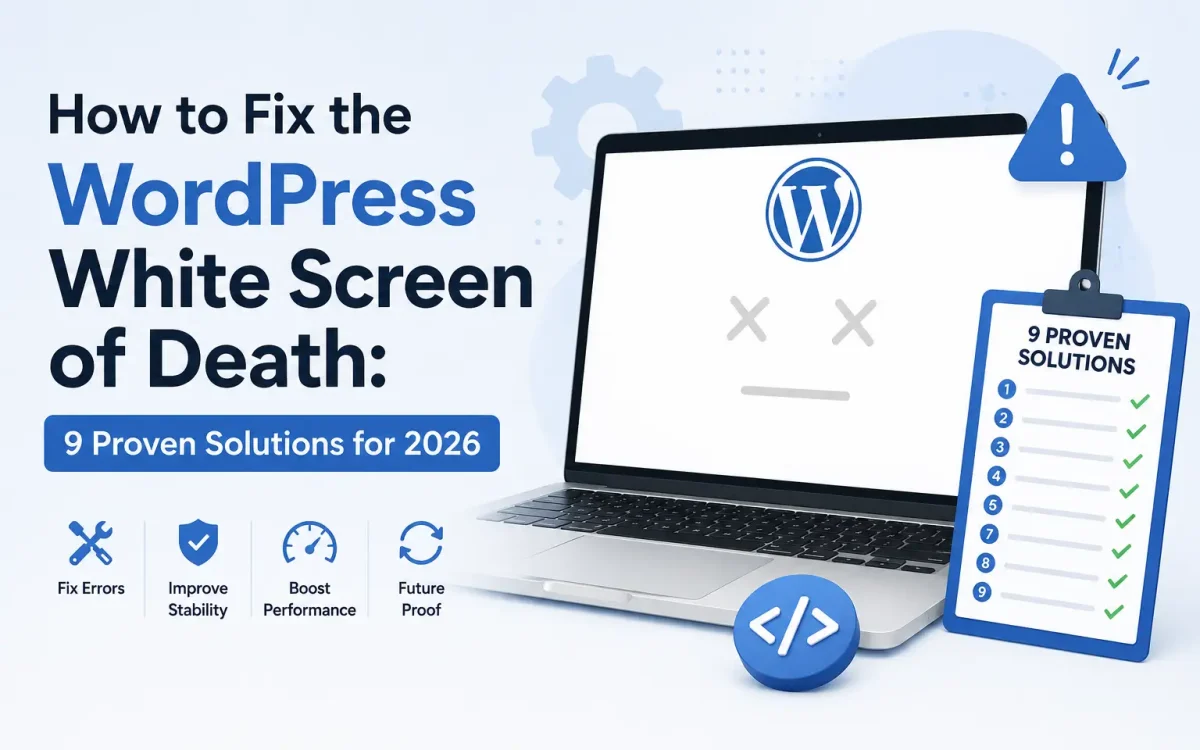
The WordPress White Screen of Death (WSOD) is one of the most frustrating issues website owners can encounter. One moment your website is functioning normally, and the next, visitors and administrators are greeted by a completely blank white page with no error messages or clues about what went wrong. For businesses, blogs, eCommerce stores, and professional websites, this issue can result in lost traffic, reduced revenue, poor user experience, and even SEO ranking drops if left unresolved for an extended period. Fortunately, the White Screen of Death is usually caused by a limited number of issues that can be identified and fixed quickly. In this comprehensive guide, you’ll learn the most common causes of WSOD and discover nine proven solutions to restore your WordPress website in 2026.
What Is the WordPress White Screen of Death?
The WordPress White Screen of Death occurs when WordPress encounters a fatal PHP error, memory limitation, or configuration problem that prevents the page from rendering correctly. Instead of displaying a detailed error message, the browser shows a blank white screen. The issue may affect:
- The entire website
- The WordPress admin area
- Specific pages or posts
- WooCommerce checkout pages
- Plugin settings pages
In some situations, visitors may still see cached versions of the site while administrators experience the blank screen.
Why Does the White Screen of Death Happen?
Several technical issues can trigger WSOD, including:
- Faulty or incompatible plugins
- Theme conflicts
- PHP memory exhaustion
- Corrupted WordPress core files
- Server configuration errors
- PHP version incompatibility
- Database corruption
- File permission issues
- Malware infections
Identifying the root cause is essential for applying the correct solution and preventing future occurrences.
Solution 1: Enable WordPress Debug Mode
The first step in troubleshooting WSOD is enabling WordPress debugging. Open the wp-config.php file and locate:
define('WP_DEBUG', false);
Replace it with:
define('WP_DEBUG', true);
define('WP_DEBUG_LOG', true);
define('WP_DEBUG_DISPLAY', false);
This configuration creates a log file located at:
wp-content/debug.log
The log often reveals the exact plugin, theme, or function causing the problem. Debug mode can help identify:
- PHP fatal errors
- Missing functions
- Deprecated code
- Plugin conflicts
- Theme compatibility issues
Reviewing the debug log is often the fastest way to pinpoint the source of the white screen.
Solution 2: Disable All Plugins
Plugin conflicts remain one of the most common causes of WSOD. If you cannot access the WordPress dashboard, connect to your website via FTP or File Manager and navigate to:
wp-content/
Rename the plugins folder:
plugins
to:
plugins-disabled
This instantly deactivates all plugins. Refresh your website. If the website begins working again, a plugin is causing the issue.
Rename the folder back to plugins and activate plugins individually until the problematic plugin is identified. Common sources of conflicts include:
- Cache plugins
- Security plugins
- Page builders
- Backup tools
- Outdated premium plugins
Solution 3: Switch to a Default WordPress Theme
A broken or incompatible theme can also trigger a white screen. Navigate to:
wp-content/themes/
Rename your active theme folder. For example:
mytheme
to:
mytheme-disabled
WordPress will automatically attempt to activate a default theme such as:
- Twenty Twenty-Four
- Twenty Twenty-Five
- Twenty Twenty-Six
If your website loads successfully afterward, the issue originates from your theme. You may need to update, repair, or replace the theme before reactivating it.
Solution 4: Increase PHP Memory Limit
PHP memory exhaustion is one of the most frequent causes of WordPress failures. Resource-heavy websites often require additional memory, especially if they use:
- WooCommerce
- Elementor
- Learning Management Systems
- Membership plugins
- Large databases
Edit your wp-config.php file and add:
define('WP_MEMORY_LIMIT', '512M');
If you manage your own VPS or dedicated server, you can also increase memory limits inside php.ini:
memory_limit = 512M
After increasing the memory allocation, restart PHP services if required and test the website again.
Solution 5: Clear All Website Caches
Caching systems can sometimes serve corrupted content or outdated files, making it appear as though the website is broken. Clear all cache layers, including:
WordPress Cache
- LiteSpeed Cache
- WP Rocket
- FlyingPress
- W3 Total Cache
Server Cache
- LiteSpeed Enterprise Cache
- NGINX FastCGI Cache
- Varnish Cache
CDN Cache
- Cloudflare
- Bunny CDN
- QUIC.cloud
After clearing all cache layers, test your website using an incognito browser session.
Solution 6: Check File Permissions
Incorrect file permissions can prevent WordPress from reading critical files. Recommended permissions are:
Files
644
Directories
755
wp-config.php
600
Improper permissions frequently occur after migrations, backups, or manual file uploads. You can review permissions through:
- cPanel File Manager
- Plesk File Manager
- FTP clients
- SSH access
Correcting file permissions often resolves access-related white screen issues.
Solution 7: Reupload WordPress Core Files
Corrupted WordPress files can prevent the application from loading correctly. Download a fresh copy of WordPress and replace the following directories:
wp-admin
wp-includes
Do not overwrite:
wp-content
wp-config.php
This refreshes the WordPress core while preserving your website content, themes, plugins, and settings. If corrupted core files were responsible, the website should begin functioning normally immediately afterward.
Solution 8: Verify PHP Version Compatibility
Modern WordPress installations perform best with current PHP versions. Recommended PHP versions for 2026 include:
- PHP 8.2
- PHP 8.3
- PHP 8.4
Older plugins and themes may not be compatible with newer PHP releases, while outdated PHP versions can cause failures with modern WordPress components. If the white screen appeared immediately after a PHP upgrade, temporarily reverting to a compatible version can help identify the source of the issue. Always test plugin and theme compatibility before performing major PHP upgrades.
Solution 9: Scan for Malware and Security Issues
Malware infections can corrupt WordPress files and trigger WSOD. Malicious code may:
- Break PHP execution
- Modify theme files
- Inject harmful scripts
- Overload server resources
- Corrupt WordPress core files
Perform a full security scan using trusted tools such as:
- Wordfence
- Patchstack
- ImunifyAV
- Malware scanning services
Additionally, inspect critical files such as:
.htaccess
wp-config.php
functions.php
Remove suspicious code and change all passwords after cleaning the website.
Advanced Troubleshooting Methods
If the previous solutions do not resolve the issue, additional investigation may be necessary.
Review Server Error Logs
Server logs often reveal critical information. Common locations include:
/var/log/apache2/error.log
or
/var/log/nginx/error.log
Look for:
- PHP Fatal Errors
- Permission Denied messages
- Database connection failures
- Memory allocation errors
Repair the WordPress Database
Database corruption can sometimes cause WSOD. Add the following line to wp-config.php:
define('WP_ALLOW_REPAIR', true);
Then visit:
yourdomain.com/wp-admin/maint/repair.php
Run the repair process and remove the configuration line afterward.
Review Recent Changes
Ask yourself:
- Did you update WordPress recently?
- Install a new plugin?
- Change themes?
- Upgrade PHP?
- Modify server settings?
Reverting recent changes can often restore website functionality immediately.
How to Prevent White Screen of Death Issues
Preventing WSOD is easier than recovering from it. Follow these best practices:
Use Reliable Hosting
Many WordPress failures originate from overloaded shared hosting environments with limited resources. A quality VPS provides:
- Dedicated CPU resources
- Faster NVMe storage
- Improved PHP performance
- Better reliability
- Greater stability
Maintain Regular Backups
Always keep:
- Daily backups
- Weekly snapshots
- Offsite backups
Reliable backups ensure rapid recovery if unexpected issues occur.
Test Updates Before Deployment
Avoid updating multiple plugins simultaneously. Instead:
- Create a backup
- Test updates individually
- Verify functionality after each update
Monitor Website Health
Use monitoring tools to track:
- Uptime
- Resource usage
- PHP errors
- Performance metrics
Early detection can prevent minor issues from becoming major outages.
Why UKSpeed VPS Hosting Helps Prevent WordPress Errors
Many WordPress white screen incidents occur because websites are hosted on environments with insufficient resources. UKSpeed VPS hosting provides:
- High-performance NVMe storage
- Dedicated CPU resources
- Modern PHP environments
- Fast networking infrastructure
- Enhanced security protections
- Consistent website performance
Whether you operate a business website, WooCommerce store, agency platform, or high-traffic blog, a professionally managed VPS can significantly reduce the risk of WordPress performance and stability issues.
Frequently Asked Questions
Is the White Screen of Death harmful to SEO?
Yes. If search engines encounter repeated downtime or inaccessible pages, rankings can be negatively affected.
Can I fix WSOD without technical experience?
In many cases, yes. Disabling plugins, switching themes, and clearing cache often resolve the issue quickly.
Does WSOD mean my website has been hacked?
Not necessarily. Most cases are caused by plugin conflicts, memory limits, or configuration errors rather than security breaches.
Will I lose my content?
Usually not. The White Screen of Death rarely affects posts, pages, or database content.
How long does it take to fix?
Simple issues can be resolved within minutes, while complex compatibility or server-related problems may require additional investigation.
Conclusion
The WordPress White Screen of Death can be alarming, but it is one of the most common and fixable WordPress issues. By following a structured troubleshooting process—starting with debug mode, checking plugins and themes, increasing memory limits, reviewing server logs, and scanning for malware—you can quickly identify the root cause and restore your website. More importantly, choosing reliable hosting, maintaining regular backups, and keeping WordPress properly updated can dramatically reduce the likelihood of future WSOD incidents. With the right infrastructure and proactive maintenance strategy, your WordPress website can remain secure, stable, and available to visitors throughout 2026 and beyond.
Looking for fast, secure hosting?
Visit UK Speed for cloud servers, VPS NVMe, and dedicated hosting tailored for performance.